3. Initial Login (for externals with user account)
Important!
The Sharing Platform authenticates user against Microsoft Entra ID. Hence an external user needs to hold an IAV B2B account to be created by the coresponding contact person in IAV. With the activated B2B user account, the external user receives an email invitation to register the B2B account at Microsoft Entra ID.
The external user receives an invitation email, as soon as his B2B account at IAV has been granted. The email contains an invitation link to register at Microsoft Entra ID.
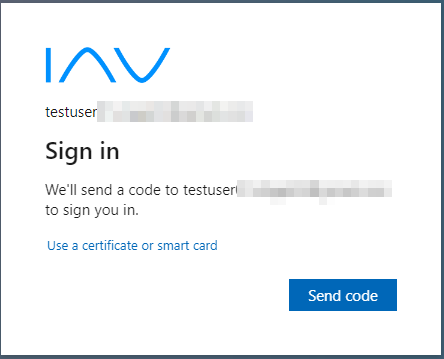
When accepting the invitation a new dialogue appears at the browser window asking to send a verification code at the corresponding email adress of the external user. Click on "Send code".
When prompted enter the code from the received email at the browser window. Click on "Sign in".
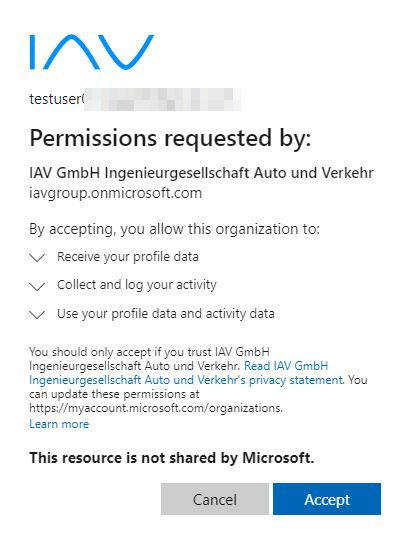
Click on "Accept".
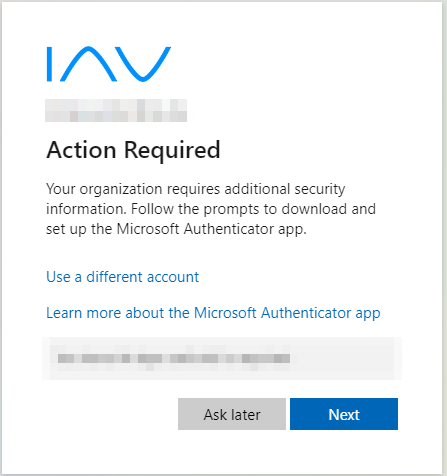
- It follows the set up of multifactor authentication. Click on "Next".
- Install the Microsoft Authenticator App on your smartphone or choose "I want to setup a different methods". Click on "Next" otherwise.
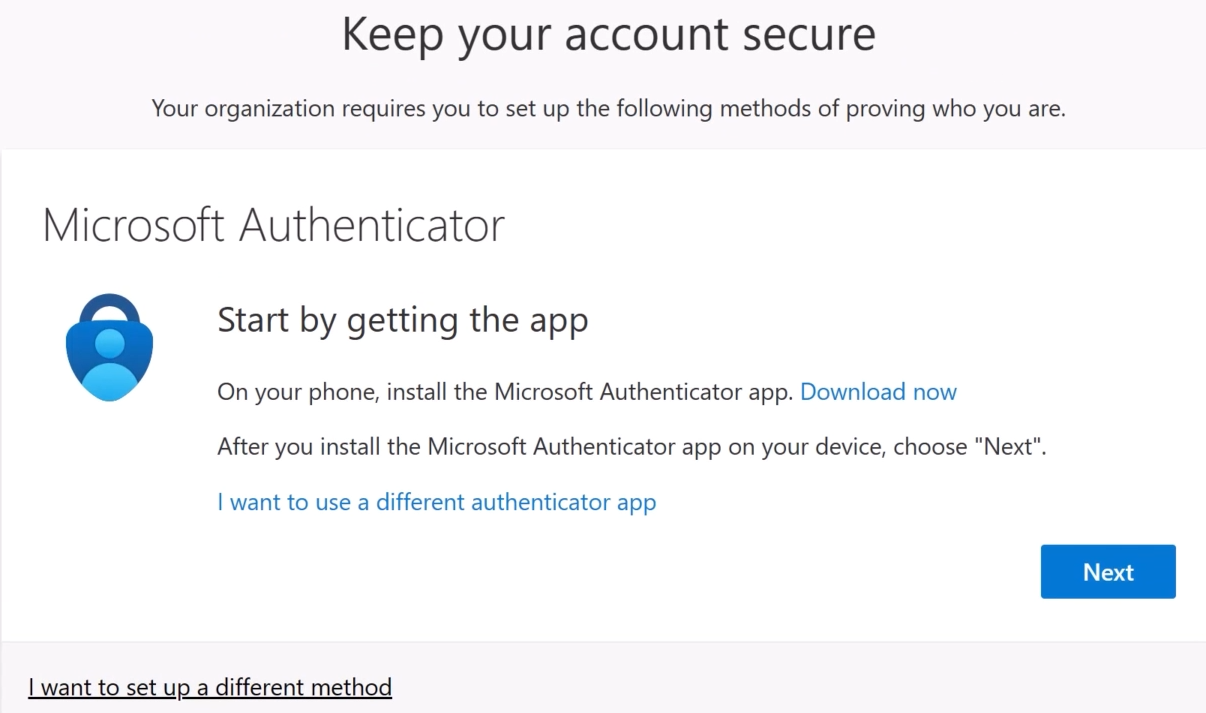
- Open the Microsoft Authenticator App on your mobile device and add a work or school account by clicking on the upper right "+" icon. Select "Work or school account". Then click on "Scan QR code". Return to your desktop and select "Next".
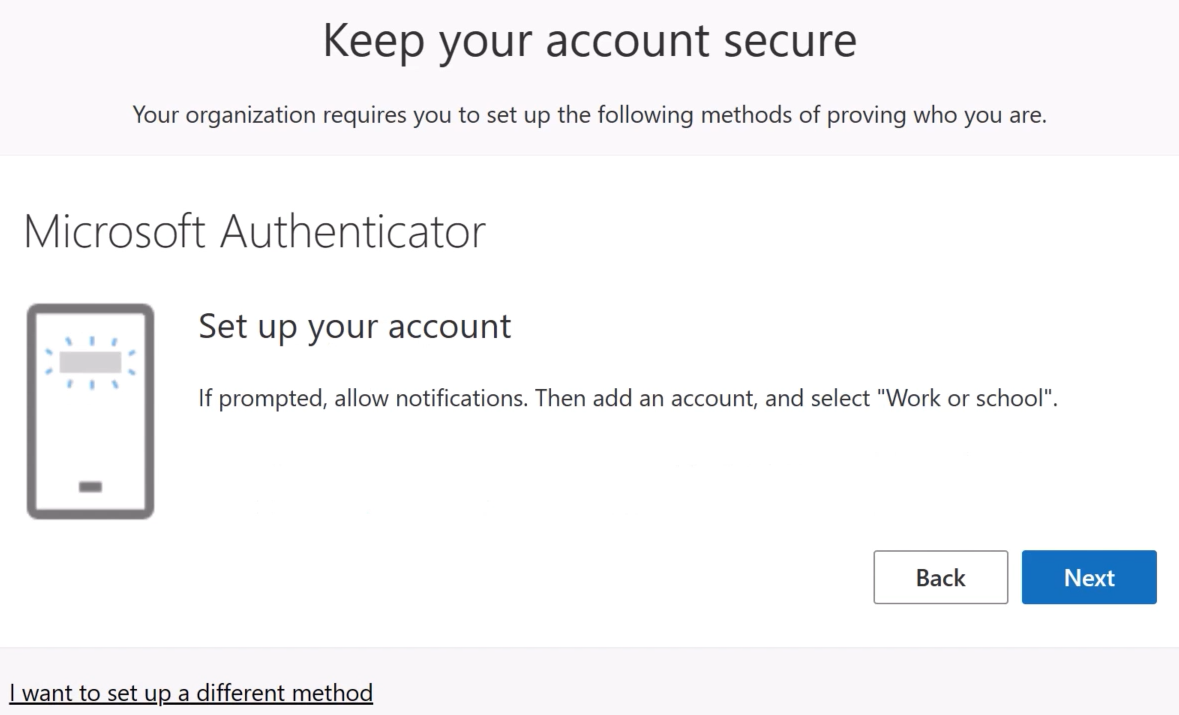
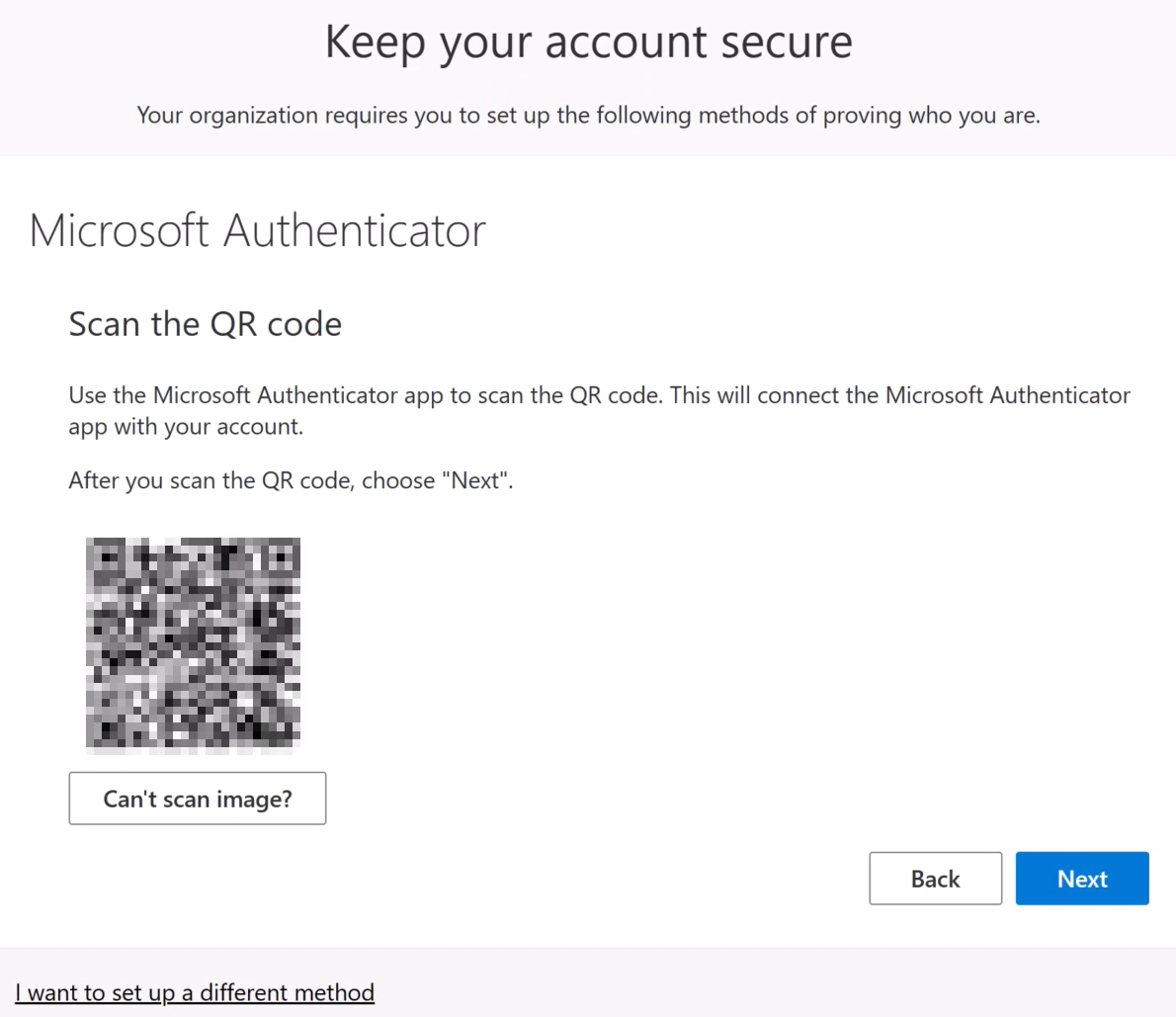
- Use your mobile device to scan the QR code on the screen. Select "Next".
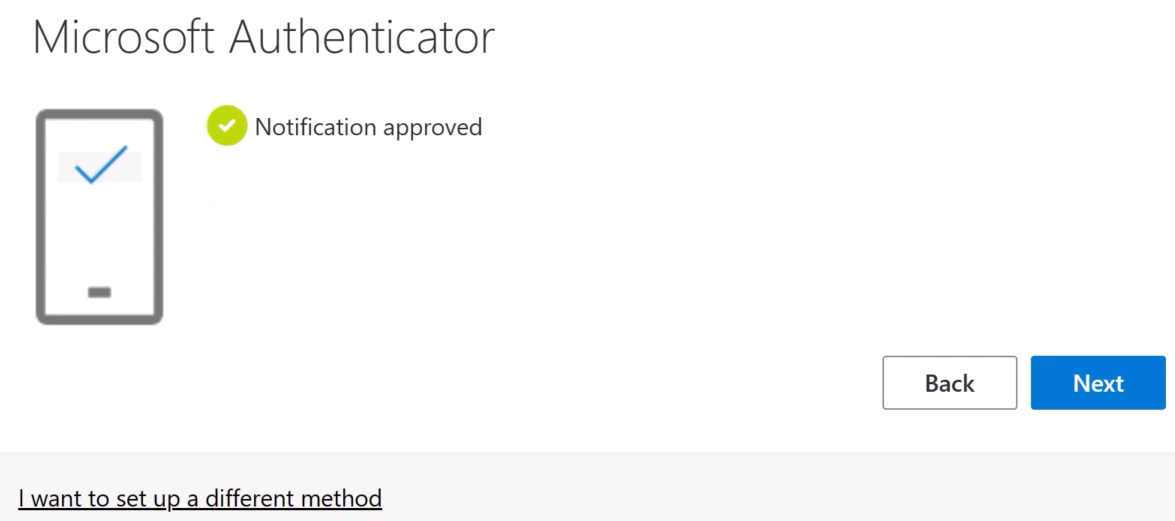
- To test the installation take note of the number on the screen. Return to the mobile device and select the notification from the MS Authenticator App, enter the displayed number from the screen and select "Yes".
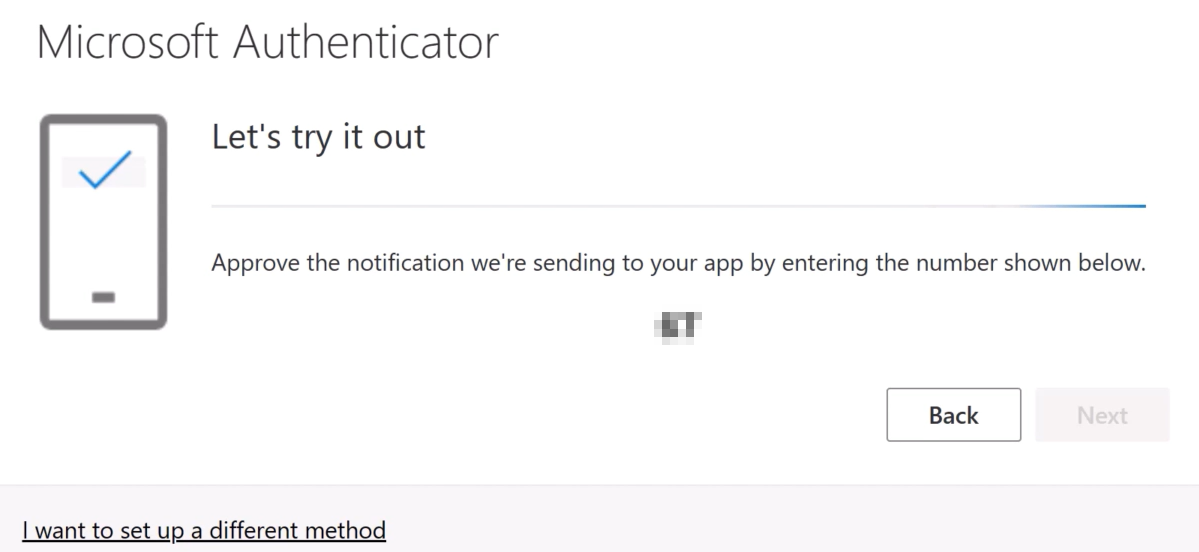
- Your test will be complete when returning to your desktop. Click on "Next".
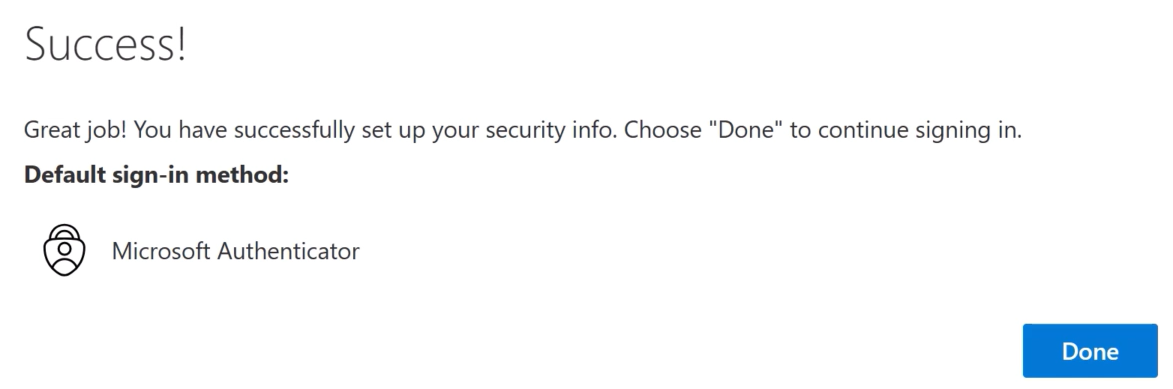
- Click on "Done".